Why mobile photo editing apps win for interior design
Why mobile photo editing apps win for interior design
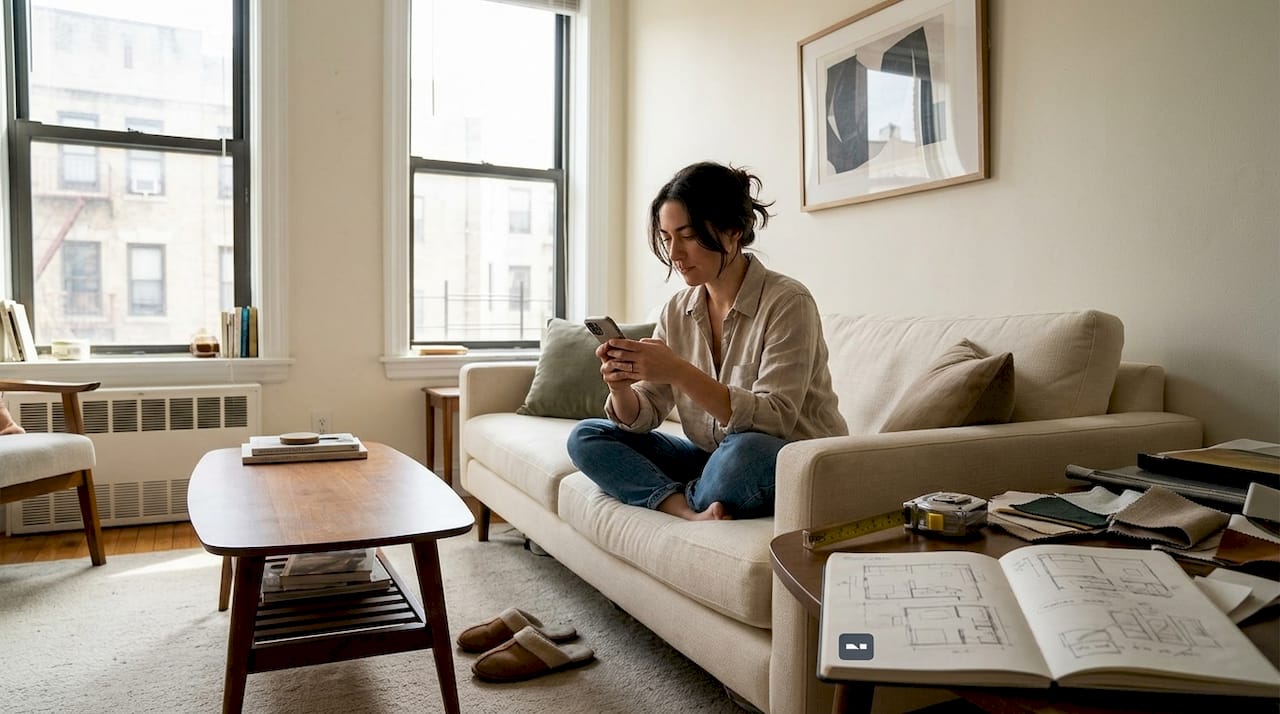
You don’t need a $500 software subscription or a professional designer to visualize your next apartment makeover. Mobile photo editing apps have quietly become one of the most powerful tools available to homeowners and DIY renovators, letting you snap a photo of your living room and see it transformed in seconds. Instant on-site visualization is now possible straight from your smartphone, no design degree required. This guide breaks down exactly why mobile apps are the smart choice, which ones to try, and how to avoid the most common mistakes.
Table of Contents
- How mobile photo editing apps transform apartment interior design
- Key advantages of mobile vs desktop photo editing for renovation projects
- Top mobile photo editing apps for DIY interior visualization
- Limiting factors and expert tips for mobile photo editing in interiors
- Our take: What most guides miss about mobile photo editing for interiors
- Ready to transform your apartment? Start with the right app
- Frequently asked questions
Key Takeaways
| Point | Details |
|---|---|
| Instant visualization | Mobile apps let you see interior changes on the spot, saving time and reducing guesswork. |
| Beginner-friendly and affordable | You don’t need design skills or expensive software to start editing your apartment photos. |
| On-the-go flexibility | Update, experiment, and iterate from anywhere using only your smartphone. |
| AI-powered results | Leading apps use AI for realistic previews and fast redesign suggestions tailored for interiors. |
How mobile photo editing apps transform apartment interior design
Not long ago, visualizing a redesigned room meant hiring a designer, buying expensive software, or simply guessing. Mobile apps changed all of that. You can now stand in your living room, take a photo, and start experimenting with new wall colors, furniture layouts, or lighting styles before you spend a single dollar on materials.
AI-powered redesigns happen directly on your phone, giving you instant feedback on ideas that used to take days to mock up. These tools understand design principles, so suggestions actually look realistic rather than cartoonish. The result is a creative workflow that fits into your lunch break.
Here’s what modern mobile editing apps can do for your renovation planning:
- Swap wall colors and see how natural light affects them
- Try different furniture styles without moving a single piece
- Generate mood boards from your existing room photos
- Preview flooring, tile, and decor changes side by side
- Create 3D renderings from a standard smartphone photo
For user-friendly photo editing that doesn’t require any technical background, mobile apps are genuinely hard to beat. The learning curve is almost flat compared to desktop tools.
“Mobile apps democratize design by enabling rapid, low-cost visualization without pro software.”
If you’ve been putting off a renovation because you couldn’t picture the end result, a DIY photo editing guide built around mobile tools is the fastest way to get unstuck. The barrier to entry is essentially zero.
Key advantages of mobile vs desktop photo editing for renovation projects
Desktop software like Photoshop is powerful, but it’s built for professionals who spend hours at a workstation. For a homeowner trying to decide between sage green and warm white for a bedroom wall, that level of complexity is overkill.
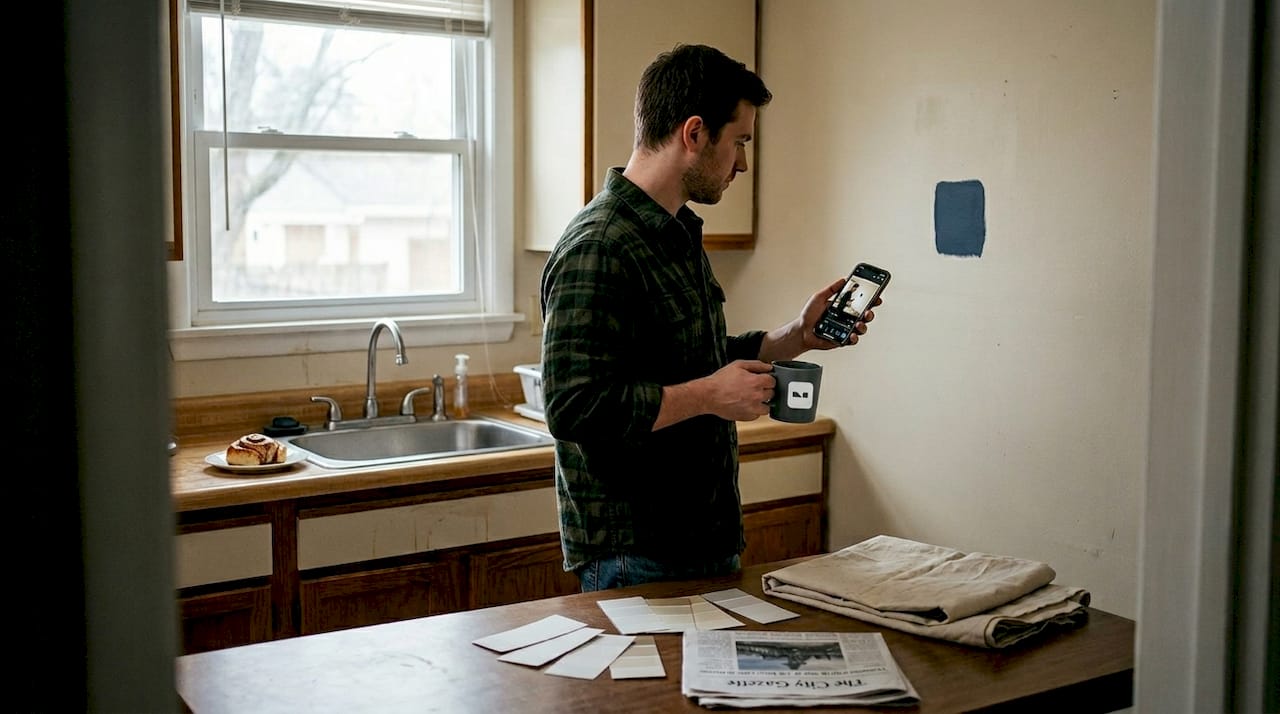
Mobile apps win on several practical fronts. The portability advantage is real: you can edit while standing in the actual room you’re redesigning, which means your decisions are grounded in reality rather than memory. You’re not guessing how the light hits that corner.
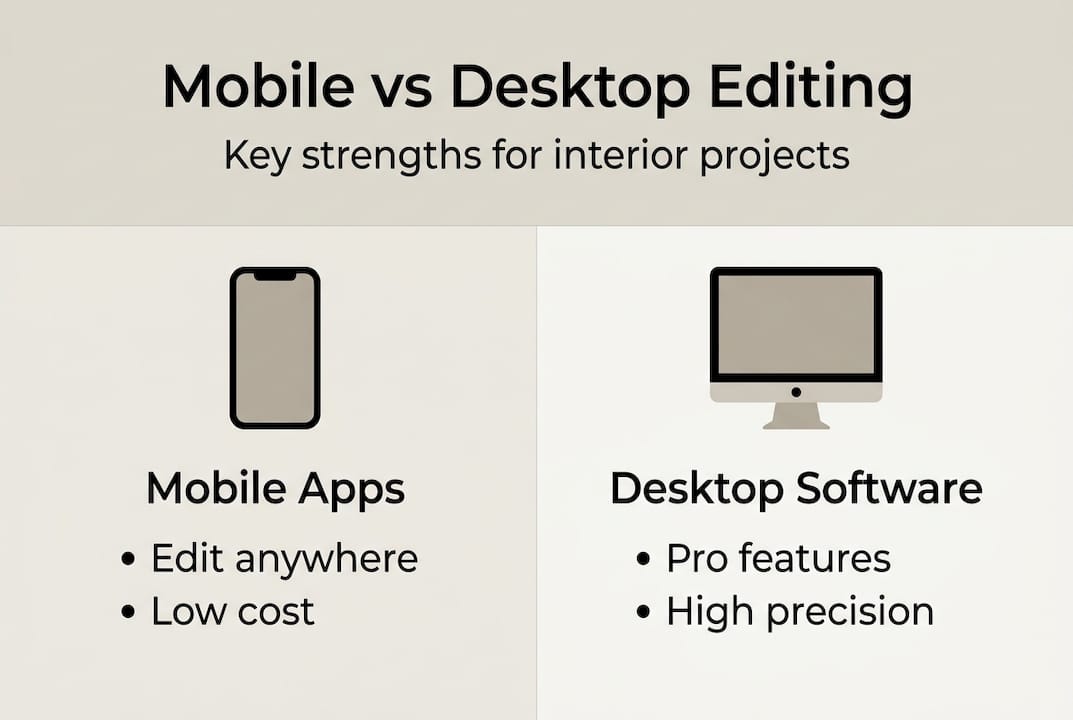
| Feature | Mobile apps | Desktop software |
|---|---|---|
| Cost | Free to low-cost | Often $20 to $50/month |
| Portability | Edit anywhere | Desk-bound |
| Learning curve | Beginner-friendly | Steep for non-pros |
| Cloud sync | Built-in on most apps | Varies by platform |
| Speed for quick edits | Very fast | Slower setup |
| Detail and precision | Good for most DIY needs | Superior for pro work |
Cost is another major factor. Snapseed and Lightroom mobile offer free or low-cost tools compared to pricier desktop subscriptions. For most renovation planning tasks, the free tier is more than enough.
Cloud sync is an underrated perk. Start editing on your phone at the hardware store, then review the results on your tablet at home. Your workflow stays connected without any manual file transfers.
Pro Tip: Use your mobile app to capture photos at the same time of day you’ll actually be living in the space. Morning light and evening light read very differently in edited previews, and matching the lighting conditions gives you a much more accurate result.
For a deeper look at how AI visualization benefits your planning process, or how to streamline photo editing for faster results, these resources are worth bookmarking. The mobile vs desktop photo editing comparison goes even deeper if you want the full technical breakdown.
Top mobile photo editing apps for DIY interior visualization
Not all apps are created equal when it comes to interior design work. Some are built for portrait photography, others for social media filters. The ones below are specifically strong for apartment and room visualization.
Here are the top picks ranked by usefulness for DIY renovators:
- RemodelAI — Uses AI room scanning to generate photorealistic redesigns. Strong for full room overhauls.
- GenRoom — Generates new room concepts from a single photo. Great for exploring completely different styles.
- AI Smart Decor — Focuses on furniture placement and decor swaps with high visual accuracy.
- Planner 5D — Offers 3D floor plan creation alongside photo editing. Ideal for layout planning.
- Canva — Excellent for mood boards and decor concept collages. Simple drag-and-drop interface.
- Snapseed — Best for lighting corrections and color grading without a learning curve.
Top apps like RemodelAI, GenRoom, and Planner 5D prioritize photorealism and batch consistency, which matters when you’re comparing multiple design options side by side. Inconsistent lighting or distorted proportions can make a good idea look bad on screen.
| App | Best for | Free tier? |
|---|---|---|
| RemodelAI | Full room AI redesign | Yes |
| GenRoom | Style exploration | Yes |
| Planner 5D | 3D layouts | Yes (limited) |
| Canva | Mood boards | Yes |
| Snapseed | Photo correction | Yes |
For aiHomeEditor alternatives that go beyond basic filters, the apps above cover a wide range of renovation needs. And if you want a step-by-step walkthrough, a photo editing tutorial can help you get the most out of whichever app you choose. It’s also worth noting that Snapseed outperforms Lightroom for many casual editing tasks, making it a solid starting point.
Limiting factors and expert tips for mobile photo editing in interiors
Mobile apps are genuinely impressive, but they have real limits. Knowing where those limits are helps you get better results and avoid frustration.
The biggest constraint is fine control. When you need to make precise, pixel-level adjustments or work with very high-resolution images for print or professional presentations, desktop tools remain superior for that level of detail. Mobile processors and screen sizes just can’t match a calibrated monitor for color-critical work.
The smart approach is hybrid. Use mobile for speed and convenience during the ideation phase, then bring your best concepts to desktop software for final polish if the project demands it. Most DIY renovators never need to make that switch at all.
Here are the best practices to follow:
- Shoot in the best available natural light, ideally midday
- Use your phone’s highest resolution setting before editing
- Avoid heavy filters that distort true colors
- Edit one element at a time to keep changes realistic
- Save original photos before applying any AI changes
Pro Tip: If an AI redesign looks too perfect or too dramatic, dial it back. The goal is a realistic preview you can actually execute, not a fantasy render that sets you up for disappointment when the paint dries.
Over-editing is one of the most common DIY pitfalls. A room that looks stunning in an app but requires $20,000 in furniture to replicate isn’t a useful planning tool. Aim for edits that reflect what you can actually achieve.
For more on how natural language photo editing works, or how rapid AI photo editing fits into a renovation workflow, those guides offer practical context. You can also follow quick AI steps to get your first edited interior photo done in under five minutes. The mobile and desktop editing tips resource is also worth a read for a broader perspective.
Our take: What most guides miss about mobile photo editing for interiors
Most comparisons between mobile and desktop editing focus on technical specs: resolution, processing power, layer support. That misses the real point entirely.
The most valuable thing mobile apps give you isn’t convenience. It’s permission to experiment. When editing feels fast and low-stakes, you try bolder ideas. You test that terracotta accent wall you’d never commit to otherwise. You discover that the open-shelf kitchen you dismissed actually looks incredible in your space.
Rapid, low-cost visualization doesn’t just save money. It changes how creatively you approach your own home. That’s the real equalizer for DIY renovators who don’t have a designer’s confidence built from years of experience.
Professional designers know this too. Many start their ideation process on mobile, building mood boards and testing concepts on their phones before ever opening a desktop application. The phone is where ideas happen. Desktop is where they get finished.
If you want to build that same creative confidence, the DIY interior editing guide is a great place to start developing your own process.
Ready to transform your apartment? Start with the right app
You’ve seen what mobile photo editing apps can do, which ones stand out, and how to use them without falling into common traps. The next step is simple: pick one app from the list above and take a photo of the room you most want to change.
At VibeMyFlat, you can describe the changes you want in plain language and get professional-quality results in under 30 seconds. No design background needed, no complex tools to learn. Whether you’re planning a full renovation or just curious what a different wall color would look like, it’s the fastest way to go from idea to visual. Start exploring today and see your apartment the way you’ve always imagined it.
Frequently asked questions
What makes mobile photo editing apps better for DIY renovators?
Mobile apps enable instant on-site visualization using AI-powered tools that require no design experience and cost far less than desktop alternatives. You can test ideas in real time, standing in the actual room.
Can mobile apps create realistic previews of interior changes?
Yes. Apps like RemodelAI and Planner 5D use AI and 3D rendering to produce photorealistic visualizations that accurately reflect lighting, proportion, and style.
Are mobile photo editing apps free to use?
Most leading apps offer free tiers with enough features for basic interior design work. Snapseed and Lightroom mobile are both fully functional at no cost for everyday editing needs.
When should I use desktop software instead of mobile apps?
Switch to desktop when you need high-resolution, detailed edits for professional presentations or print materials. For most DIY renovation planning, mobile is more than sufficient.